

Last Updated: June 5, 2026
Activity 4: Adopt Project Manager and Microsoft Project Standards
This Activity Workspace is part of the MS Project Master Class, a hands-on training program that helps project managers, schedulers, students, trainers, consultants, and organizations create solid project plans using Microsoft Project and the Project MAP framework. In this Activity, you will learn how to follow Project Manager and Microsoft Project standards by setting up the Calculation Engine, managing project elements, working with calendars and templates, and customizing the Microsoft Project planning environment. With step-by-step exercises, workflows, and real-world scheduling examples, this Workspace sets up the standards and settings you need for accurate schedule calculations, consistent project management, and professional planning for the rest of the Master Class.
New to the MS Project Master Class?
If you found this page through a search engine or external link, use the Start Here button below to learn about the Free and Complete MS Project Master Classes, the Learning Portal, Project MAP framework, Activity Workspaces, exercises, and the Master Project.
Figure 4.1 Adopt PM/MS Project Standards Activity in Project MAP. Use this Project MAP diagram to understand where Adopt PM/MS Project Standards fits within the Planning Phase and why establishing project management and Microsoft Project standards is essential before building the Work Breakdown Structure, estimating work, and developing the project schedule.
Activity 4 Workspace Outline
Activity 3: Initiate Project Charter < Activity 4: Adopt PM/MS Project Standards > Activity 5: Build Work Breakdown Structure
Workflow (50 minutes)
Exercises (3 hours 30 minutes) jump to
Exercise 4.1: Set Up Your Master Project (30 minutes) jump to
Exercise 4.2: Save a Project as a Template *.mpt (30 minutes) jump to
Update Journal on Adding Career Value (15 minutes) jump to
Exercise 4.3: Work with Base Calendars (30 minutes) jump to
Exercise 4.4: Schedule with Base Calendars (30 minutes) jump to
Exercise 4.5: Make Final Selections for the Calculation Engine (15 minutes) jump to
Exercise 4.6: Manage Global.MPT with the Organizer (35 minutes) jump to
Exercise 4.7: Customize the Ribbon (10 minutes) jump to
Update Journal on Skills and Customization (15 minutes) jump to

This entire Activity Workspace should take 5 hours and 13 minutes to complete.
This Activity Workspace is part of the MS Project Master Class learning system and the companion Master Class Book available on Amazon. Many students also complete the Master Class with the assistance of a Master Class Coach or Trainer.
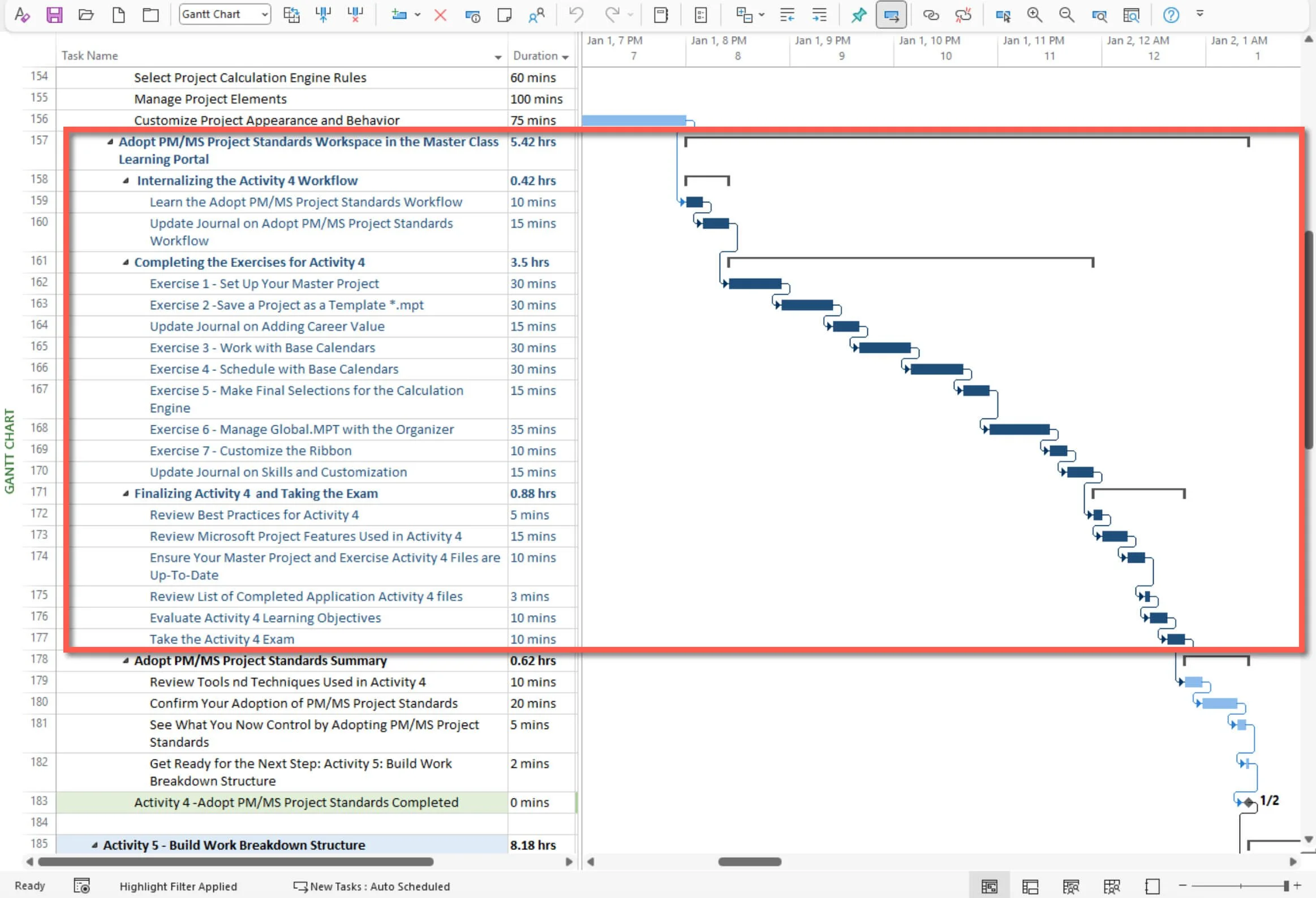
Figure 4.2 Microsoft Project Activity Workspace schedule. Use this Microsoft Project schedule to understand the recommended sequence, estimated duration, and organization of the Activity Workflow, exercises, journal updates, review activities, and final assessment.
The Project Manager and Microsoft Project standards, configuration methods, and best practices shared in this Activity Workspace come from over 35 years of experience teaching Microsoft Project, training consultants, deploying Project Server, and helping professionals around the world.
Workflow
Internalizing the Activity 4 Workflow (35 minutes)
Overview and What You Will Learn
Before you start the exercises in this Activity Workspace, review the Activity 4 Workflow. It covers the key standards, settings, and Microsoft Project features that will shape how you build, calculate, view, and manage your project plan during the rest of the MS Project Master Class.
In this Activity, you will set up the planning environment needed for a solid Microsoft Project schedule. You will decide how to manage the project, choose Calculation Engine rules, organize key Microsoft Project elements, and adjust the software’s look and settings to fit your planning needs and your organization’s standards.
You will also examine how calendars, templates, views, tables, and other project features affect schedule calculations, reports, and project control. Since Microsoft Project uses your settings and information to figure out dates, durations, work, and costs, it’s important to set these standards correctly from the start. If calendars, constraints, or templates are not set up properly, or if standards are missing, your schedule and project data may become inaccurate later.
As you go through this Activity Workspace, you will do exercises to check project management standards, review Microsoft Project settings, manage project elements, and adjust your planning environment. These tasks will help you learn how Microsoft Project works and why experienced project managers, schedulers, PMOs, consultants, and organizations use standard methods to plan and manage projects.
This Activity also highlights a key idea of the MS Project Master Class: Microsoft Project is more than just a place to enter tasks. It is a professional planning and calculation system that requires careful setup and consistent use to provide you with useful and reliable schedule information.
Learn Adopt PM/MS Project Standards Workflow (20 minutes)
Define How the Project Will Be Managed: Establish the Captain’s Standards and Configure the Vessel

Before setting out on a sailing voyage, a captain needs to meet the standards for the type of vessel, route, season, and conditions. For example, sailing a small boat on a calm lake in summer is very different from captaining a ship across the North Atlantic during hurricane season. The captain must know the waters, weather, navigation, safety procedures, rules, and best practices needed for the trip.
The vessel also needs to be properly configured for the journey. Navigation tools, charts, rules, timing methods, and sailing setups should align with the trip's goals and conditions.
This is similar to how a project manager uses both project management standards and Microsoft Project standards before creating a project schedule. The manager needs the right knowledge, experience, technical skills, and management practices for the project. Microsoft Project also needs to be set up to support planning, calculations, control, and decision-making throughout the project.
Figure 4.3. Planning Phase in Project MAP. Use this Project MAP diagram to understand the Planning Phase Activities and how Adopt PM/MS Project Standards establishes the foundation for the remaining planning process.
Select Project Calculation Engine Rules: Establish Navigation and Voyage Calculation Rules

These navigation systems and assumptions need to work together smoothly. A voyage can become risky if the charts are old, tides are calculated for the wrong area, instruments are not set up correctly, or weather plans do not match the season and conditions. Even skilled captains can make mistakes when the calculation and timing systems do not align.
This is similar to the step where you choose Microsoft Project Calculation Engine rules. Here, you set up calendars, constraints, task modes, scheduling options, and other calculation settings that Microsoft Project uses to manage the project schedule. Like a captain making sure navigation and timing systems are ready before leaving, a project manager needs to ensure Microsoft Project’s calculation settings work well together to create reliable, accurate schedules throughout the project.
This is where Microsoft Project becomes central to your work.
Manage Project Elements: Organize the Vessel and Essential Navigation Systems

After setting the captain’s standards and configuring the vessel’s navigation and timing rules, the next step is to organize the key sailing systems needed for a smooth voyage. These include navigation charts, onboard instruments, tide and weather references, communication tools, sail setups, maintenance records, storage, safety gear, and navigational logs. All of these should be organized, easily accessible, and working together before setting out.
Experienced captains use standard vessel setups and reusable navigation systems they have developed over time. They often move their favorite charts, instrument layouts, references, checklists, sailing templates, maintenance routines, and voyage plans from one vessel to another to keep things consistent and efficient. Each voyage might also need its own navigation calendar, seasonal sailing plans, watch schedules, and routines, depending on the vessel, route, crew, and conditions.
This is similar to managing elements in Microsoft Project. At this stage, you bring together Views, Tables, Groups, Filters, Maps, Calendars, Custom Fields, and Modules to help with planning, resource management, reporting, and project control. The Organizer and Global.MPT file help you store, manage, and transfer these elements between projects. You also set up base calendars for the project, tasks, and resources so the schedule matches real working conditions and needs.
Customize Project Appearance and Behavior: Configure the Vessel for Your Sailing Style and Operational Preferences

After setting up the boat’s basic standards, navigation rules, and key systems, the captain adjusts the boat to fit their own sailing style and needs. This might mean moving instruments for better visibility, arranging controls for easier use, customizing navigation displays, organizing storage differently, or changing onboard systems to match the captain's preferred operating style. Even if two captains use the same boat, each one will set it up differently based on their own experience, priorities, and way of sailing.
The boat’s overall behavior also needs to be properly configured. You can adjust navigation alerts, autopilot settings, communication systems, display options, and how tasks are performed on board. These changes don’t affect the trip's goal, but they do make the boat easier and more comfortable to run during the journey.
This is similar to the step where you customize how Microsoft Project looks and works. Here, you set up Project Options to control how the program behaves both overall and in your current project. You can change views, formatting, ribbons, toolbars, and the Quick Access Toolbar to make things easier to use and see. In the end, you’ll have a Microsoft Project setup that fits the way you like to plan, manage, and control your projects.

Activity 4 lays the groundwork for how the project manager and Microsoft Project will work together throughout the project. Before creating a solid schedule, it’s important to set standards for project management, Microsoft Project settings, schedule rules, project parts, and how the software works.
You can think of this workflow like getting a sailboat ready for a long trip. Before setting out, the captain checks that the boat, navigation tools, rules, and onboard setup are all ready for the journey. Even small setup mistakes or mixed-up navigation ideas can cause big problems later. The same goes for Microsoft Project.
The first step in the workflow is to decide how the project will be managed. In sailing, this is like setting the captain’s rules and getting the boat ready for the trip. Each journey needs different skills, knowledge, and preparation. In the same way, this step sets the project management and Microsoft Project standards that will guide planning and control.
Next, the workflow involves selecting Microsoft Project Calculation Engine rules. This is like setting up the boat’s navigation and calculation rules, such as charts, tides, weather, timing, and navigation tools for the trip. In Microsoft Project, calendars, constraints, task modes, and scheduling options must also be set up correctly for accurate schedules.
The workflow then shifts to managing project elements. In sailing terms, the workflow then moves to managing project elements. In sailing, this means organizing navigation systems, equipment, references, and tools so they work well together during the trip. In Microsoft Project, this means arranging Views, Tables, Groups, Filters, Calendars, and Custom Fields to keep things consistent and under control.nd behavior. This is comparable to configuring the vessel to match the captain’s preferred operating style by adjusting instruments, controls, displays, and onboard systems for clarity and efficiency. Likewise, Microsoft Project views, formatting, ribbons, toolbars, and Project Options are customized to support the project manager’s preferred way of working.
Figure 4.4 Microsoft Project User's Guide. Use this guide to document how Microsoft Project should be configured and used consistently throughout your organization to support standardized project planning, scheduling, and reporting.

Download
Click the Download icon above and open the Microsoft Project User’s Guide.docx. Complete this guide to communicate how Microsoft Project is to be used in your organization.

Field Notes
Software standards: Every project manager needs to use the software and develop plans consistently.
After Microsoft launched Project Server, I spent years working closely with customers to help them set up the system and reach their business goals. Most often, they wanted better resource management, such as balancing workloads and coordinating resources across projects. At the time, business writer Tom Peters said the next big business shift would focus on resource management, and many companies thought Microsoft Project Server was the answer.

Most of the executives we worked with, especially chief operating officers and department directors, believed that simply installing and configuring Microsoft Project Server would automatically lead to better resource management. This made sense to them because their project managers were already using Microsoft Project to build schedules and assign resources. They thought the software just needed to bring all the information together.
Many organizations didn’t realize that enterprise resource management only works if all project managers use the same standards, methods, and software practices. If you have 25, 50, or even 100 project managers, they can’t manage shared resources effectively if each project plan is built, calculated, and maintained differently.
This problem is a lot like managing a fleet of sailboats. Picture trying to coordinate dozens of boats crossing the sea, but each captain uses different charts, timekeeping, sailing methods, weather assumptions, and ways to measure distance and speed. Even if all the captains are skilled, the fleet won’t work well without shared standards and consistent practices. The bigger the fleet, the more important these standards are.
I learned another key lesson during the early days of Project Server while showing a demo to customers at a Microsoft regional office. The first version of Project Server had a feature that looked like it could balance resource assignments across projects. But in truth, it only showed what might happen in theory and didn’t actually fix the real resource management problem. During the demo, one customer said, “That is the worst thing you could ever show a manager.” He was right. The feature made it seem like software alone could solve enterprise resource management, which wasn’t true. After that, I stopped showing it.
That experience made it clear to me that successful enterprise project management relies on having standards. Activity 4 focuses on setting rules and standards for both project managers and the Microsoft Project environment. To coordinate projects effectively across an organization, project managers need to follow the same standards, and Microsoft Project must be configured and used consistently across all projects.

Best Practice
Project Managers
Demonstrated proficiency in Microsoft Project and ability to build expert project plans in Microsoft Project. Proficiency is measured with a standard like the DCMA 14-Point Assessment. One example app that will perform this assessment is Barbecana’s Schedule Inspector.
Microsoft Project
New projects are built from expert templates, and planning and managing projects are guided by a standards document.

Activity 4: Adopt PM/MS Project Standards Workflow Chart
Before beginning the exercises in this Activity Workspace, take time to carefully review and internalize the Activity 4 Workflow Chart. This workflow represents more than a sequence of software steps. It reflects the logical process used to establish the PM/MS Project Standards that will govern how your Master Project is planned, calculated, organized, and managed.
As you work through this Activity, continually return to this workflow and use it to understand how the pieces fit together. The goal is not simply to complete exercises, but to develop a repeatable planning approach you can apply to future projects. Over time, this workflow should become second nature—helping you think more systematically about project setup, Calculation Engine configuration, Project Elements, and the overall project management environment before detailed planning begins.
The remaining Planning Activities depend on these standards being established correctly. Internalize the workflow now, and the rest of the Master Class will become far easier to understand and apply.
Figure 4.5 Adopt PM/MS Project Standards Workflow. Use this workflow chart to understand the logical sequence for establishing project management standards, configuring Microsoft Project, selecting Calculation Engine rules, managing project elements, and customizing the planning environment.
Download
Click the Download icon above and open the Adopt PM/MS Project Standards Workflow.pdf file.

Update Journal on Adopt PM/MS Project Workflow - 15 minutes
Journal Questions: Reflecting on the workflow for adopting PM/MS Project Standards described above:
What is the most challenging aspect of this process, and why?
How would you approach these challenges to ensure successful project planning and execution?
Exercises
Completing the Exercises for Activity 4 (3 hours 30 minutes)
This section’s exercises are split into two parts. The first two will help you create and set up your Master Project and save a reusable Microsoft Project template. These steps lay the groundwork for the rest of the MS Project Master Class and introduce the standards, structure, and settings you’ll use as you plan. You’ll start building your Master Project, which will grow with each Activity in the Master Class and might be reviewed later by a Coach, Reviewer, or certification evaluator.
The remaining exercises will show you how to set up and customize Microsoft Project for professional project planning and scheduling. You’ll use tools like the Calculation Engine, calendars, templates, views, tables, the Organizer, Global.MPT, and Ribbon customization. As you work through these, you’ll see how each part affects schedule calculations, reporting, project control, and planning consistency. These exercises are meant to help you go beyond simply entering tasks and start learning how experienced project managers and organizations use Microsoft Project for accurate, reliable planning.

Note
If you started this MS Project Master Class with the first Activity (chapter), Clarify Objectives, these first two exercises are a review.

Definitions
Blank Project: In Microsoft Project, a blank Project is a new, empty project file you create from scratch. Starting with a Blank Project allows you to build a plan tailored to your needs without predefined tasks or structure.
Calendars: Calendars in Microsoft Project define the standard working and non-working times, days, and periods for a project. They help with scheduling by determining when project tasks can occur. There are three types of calendars: base calendars, which set the general working and non-working days and times for the project; resource calendars, which are specific to individual resources and can override base calendars; and Task calendars, which can be assigned to particular tasks and can override both base and resource calendars for those tasks.
Project Options: Project Options in Microsoft Project refer to the settings and configurations that allow users to customize the behavior and appearance of their project plans. These options include preferences related to scheduling, formatting, calculations, and other aspects of project management.
Organizer: The Organizer feature in Microsoft Project allows users to manage and transfer various elements, such as views, tables, filters, and reports, between different Microsoft Project files or within the same file. It's a tool for managing and reusing custom project elements, making it easier to apply consistent standards and formats across multiple projects.
Template: A Template in Microsoft Project is a pre-designed project plan that is a starting point for creating new projects. Templates can include predefined tasks, resources, and other settings. They help standardize project planning processes and ensure consistency across similar projects. A project can easily be saved as a template. A template file has the extension .mpt.

Exercise 4.1: Set Up Your Master Project (30 minutes)
In this MS Project Master Class, you will create a Master Project in Microsoft Project. The objective is for you to have a technically correct project plan by the time you have completed this class.
In this Master Class, the goal is not to learn features—it is to learn how to build a project correctly so that Microsoft Project produces a reliable and defensible project plan.
This Master Project is not just an example. It is where you will apply every Activity in this Master Class and build a complete, technically sound project plan.
In addition, if you are working with a Coach or planning to obtain a certificate of completion, you must provide this Master Project for review. A certified Master Coach or Master Class Reviewer will evaluate and analyze it, and one or more analytical tools that evaluate Microsoft Project plans will also analyze it.
Spend a few minutes selecting a project to work on during this MS Project Master Class. Ideally, choose a work-related project. The benefit of picking a work-related project is that you complete work during the class, and learning becomes more relevant because you can immediately apply what you learn to the type of project you manage.
An alternative to a work-related project is a personal project. An individual project could include an event like a wedding, a kitchen remodel, planning out an executive MBA program, an investment program, buying or selling your home, obtaining your PMP certification, or a significant landscape project.

Warning
Make sure you have selected the best project for your Master Project. During this MS Project Master Class, you will put a lot of work into this project, and switching to another project will not be practical.
There are several ways to start a new project. Most people Click the New icon and then double-click Blank Project. Then, they save the project by clicking File, Save As, and naming it.
Another way to start a new project is from an existing template file.
Download
Click the Download icon above and open the Start New Project Template.mpt.
After you download the template file, open it in Microsoft Project. Remember, you have to search for Project Templates (*.mpt).
Figure 4.6 Opening a template file in Microsoft Project. Use this screen to locate and open a Microsoft Project template by selecting Project Templates (*.mpt) as the file type.
Once the template file has been opened, notice these things:
A - The title bar does not give you the template title; the assumption is you are starting a new project. If you want to change a template file, open the template, select File / Save As, and then Project Template (*.mpt).
B- All of the tasks are Auto Scheduled.
C - This is the beginning of a work breakdown structure. The first level is for the project phases, and the two milestones of any project, Project Started and Project Completed, are entered.
D - The Project Summary Task (sometimes called row zero or the project title is displayed.
E - Local selections in Project Options have been made. To ensure that your Master Project calculates and displays the same as the illustrations and exercises, these local selections in Project Options are recommended. In addition, when completing exercises, your results could be slightly different. This usually consists of global and local selections in Project Options, your version or build, and the order in which you might do something in Microsoft Project. Click the button below to review setting up Microsoft Project for this MS Project Master Class.
Save this template file as your Master Project. You will build a complete Master Project, which becomes the foundation for applying each Activity in this Master Class.
Figure 4.7 Start New Project Template. Use this Microsoft Project template to begin a new project with Auto Scheduled tasks, predefined phases and Milestones, the Project Summary Task, and recommended Project Options.
When Finished with Exercise 4.1
You should have selected the project you will work on during this MS Project Master Class. This project will be your Master Project.
Exercise 4.2: Save a Project as a Template *.mpt (30 minutes)
In this next exercise, you will review and save a project as a Microsoft Project template file.
Download
Click the Download icon above and open the Software Development.mpp file.
Figure 4.8 Active software development project with named resource assignments. Use this Gantt Chart to review an existing project before converting it into a reusable Microsoft Project template.
Suppose this is an in-progress project that is going well. The project plan was your best yet, and you want to turn the project into a project template so that software development project managers in your group can use it to plan a new development project. This will become your expert plan for most new software projects, and you will refine it over time.
Let’s review a few things about this project.
The current project has resources assigned. Those resources should be turned into generic resources for a template file. No tool in Microsoft Project (except if you are using Project Server) can accomplish this task, so you must replace the current team members by renaming each to represent a skill. The idea is that a project manager using this template would rename these generic resources with the actual team members assigned to the project.
To do this, click the Resource Sheet icon on the status bar. In this case, each resource is assigned to a Group. Use the group names to rename the resources as generic resources. For instance, in the Project Management group, Scott Smith would become the Project Manager.
Rename all of the resources. When finished, click the Gantt Chart icon on the status bar to return to that view.
Figure 4.9 Resource Sheet with named team members and resource groups. Use this view to replace individual names with generic skill-based resources before saving the project as a reusable template.
Now that we are back in the Gantt Chart view, let’s look at some things. First, notice that all of the assignments are now skill assignments.
Next, notice that task ID #8 has a $1,000 fixed cost. When you save this project as a template, you may want to keep resource rates (the rates in the previous figure) because they haven’t changed, but consider removing costs specific to a task like this $1,000 fixed cost since it is unique to the project.
The cost numbers in the Cost column in the figure below are calculated based on those resource rates.
Also, notice that some tasks have check marks. This means those tasks are completed, or they are 100% complete. Completed information in Microsoft Project is referred to as Actuals.
Last, notice a Baseline Cost column, meaning this project's baseline has been set.
When we save this project as a template, we will want to wipe clean any Actual information, such as percent complete and all Baseline information. We likely want to delete Fixed Cost entries and may or may not like to delete Resource Standard Rates.
But before we save a project as a template, there are other things we should edit or clean up first.
Figure 4.10 Gantt Chart with generic skill-based resource assignments. Use this view to confirm that renaming resources preserves their task assignments while preparing the project for use as a template.
Before saving a project as a template, we should check the project, resource, and task calendars. Again, in this MS Project Master Class, we will be working with these calendars frequently so we won’t spend much time on them here. However, let’s check out the project Calendar and make a change.
In your project file, click the Change Working Time command to open the dialog box for viewing or editing calendars. By default, the Project Calendar is shown in the first drop-down. The project calendar has been defined, and exceptions, in this case, holidays, have been added.
The exceptions in the figure below represent the standard eleven U.S. Federal holidays. Click the Details button to open the dialog box to set the exception or holiday rules. Thanksgiving, for instance, is a Nonworking day that occurs annually on the FourthThursday of November. This exception in the Company Calendar starts on 1/1/24 and ends on 11/22/29.
Let’s say one holiday is missing: the day after Thanksgiving. Define that holiday by:
Clicking on a blank row in the Exceptions tab
In the blank row, enter the Day after Thanksgiving
Clicking the Details button
Selecting the Nonworking radio button
Select the Yearly radio button
Select Fourth, Friday, and November
Enter the Start field as 1/1/24
Enter the End by field as 1/1/30
To save, click OK and then Save the project to save this calendar exception
Figure 4.11 Making an exception to the Project Calendar. Use the Change Working Time and Details dialog boxes to define the day after Thanksgiving as a recurring nonworking exception in the project calendar.
The next step in preparing a project is to review local selections in Project Options. In Project Options, all selections are either local, for the active project, or global, meaning the selection is for any project you open. An example of a global setting is that you can decide on a default location for your template files. If you have a place in mind, enter that location in Options.
Carefully considering the local settings is a good idea for a template file. The concept of a template file is to start a project manager off on the right foot by using the template.
Before we open Options, I want to point out some things on the status bar.
The status bar being displayed is a global selection in Options.
A - Ready means you can edit the project. If you have Project Options open, the message will change to Busy, and you won’t be able to edit tasks, resources, or assignments.
B - Calculation Off or CalculationOn is a global setting. Right now, neither the project nor any other open project is calculating.
C - The No Macro Recording icon is displayed.
D- New Tasks: Auto Scheduled is a local setting in Options. This should be the default selection for new projects in Microsoft Project; it is not, as I will explain later, but you can make it the default setting for your project.
E - Selections for standard views.
F - Selection for the Report Design page.
G - Zoom slider. This slider zooms the timescale. However, unlike other Office products like Excel and Word, there is no way to zoom the view.
Figure 4.12 Microsoft Project status bar. Use the status bar to monitor editing status, calculation mode, macro recording, default task scheduling mode, view shortcuts, report access, and timescale zoom.
Let’s review these messages and make two selections in Options. To open Project Options or Options, select File and then Options at the bottom of the Backstage View.
Notice that the Ready message on the status bar has changed to Busy. Although you can make selections in Options, you cannot edit the data in the project, so it is busy.
Let’s make two changes in Options. First, select the Schedule page. At the bottom of the page, you will notice radio buttons for turning calculations on or off. Select the On button. When you click OK in Options, all open projects will be calculated. Calculation is a global selection that is applied to all open projects.
Then, notice the Scheduling options for this project. Everything in this section is a local selection, meaning selections are applied only to this project. For this project, all new tasks created are Auto Scheduled.
Auto Scheduled is what we want for this template file we are creating, and as mentioned, it is not the default setting for new projects in Microsoft Project; it is just out of the box. But, as a user, you can change it here to make it a default selection for new projects. In the drop-down box, select All New Projects. As shown in the figure below. Then, in the drop-down box for New tasks created, select Auto Scheduled. When you save these selections in Options by clicking the OK button and start a new blank project, Auto Scheduled tasks will be the default selection.
Save selections in Options by clicking OK, then Save the project to save local selections. Notice Calculation Off is no longer displayed.
Figure 4.13 Local and global selections in Project Options. Use the Project Options dialog to distinguish between settings that apply only to the current project and settings that become the default for future projects.
Another area to clean up before saving a project as a template is elements like views and tables used in the current project and perhaps edited by the manager. Still, you don’t want to be included in the template file. Let’s spend a minute cleaning up any elements in the Organizer that were used in this project but are not needed for the template. Before doing this, it is essential to know you cannot delete an active view, so if you want to delete an active view, apply a view you wish to as part of the template and delete the view.
We will work with the Organizer and custom elements later on this Activity Workspace page, so for now, let’s use the Organizer to clean up (delete) views and tables we don’t want.
To open the Organizer, click File, Info, and then click the Organizer button.
Delete the views associated with this project. The Gantt Chart view is currently applied or active, so it cannot be deleted. With the Organizer, select all of the views associated with the project, except the Gantt Chart, and then click the Delete button. When done, click the Close button and then Save the project.
Figure 4.14. Using the Organizer in Microsoft Project. Use the Organizer to copy, rename, or delete views, tables, filters, groups, calendars, reports, maps, and other customized project elements between a project file and the Global.MPT template.
Finally, you are ready to save this project as a template. Save it as a template (File / Save As - pick a location / and then select Project Template (*.mpt) in the Save as type field.
First, in the File name field, give the template Template Exercise. Then, save the template. When you open the Save as Template dialog box, check off the items you want to remove from the template. In this case, remove everything except Resource Rates.
Figure 4.15. Saving a project as a template. Use the Save As dialog to create a reusable Microsoft Project template (.MPT) that preserves project standards while removing project-specific information.
Notice the following:
The title bar shows the name of the template. Further changes will be saved with this template.
Baseline information has been removed.
Actuals have been removed.
Any fixed Costs have been removed.
If you apply the Resource Sheet view, Resource Rates have not been removed.
Figure 4.16 A template file after the baseline, actuals, and fixed costs have been removed.
When Finished with Exercise 4.2
You saved Software Development.mpp as Template Exercise.mpt. When creating this template, you removed everything except Resource Rates. The baseline, actuals, and Fixed Costs have been removed.
This Template Exercise.mpt file also has removed previously used views, except the Gantt Chart, in the Organizer and the local selection in Options, New tasks created:AutoScheduled has been selected.

Case Example
Templates: Expert Plans at Hoover Dam
Earlier in the Master Class Book, I shared my experience working with the Hoover Dam maintenance team. My main contact was a planning expert who had spent more than 30 years at the dam. He knew the facility, its systems, and its maintenance needs inside and out. Most importantly, he cared deeply about what would happen after he retired.
He wanted to do more than complete his own projects. His real goal was to leave something even more valuable: a set of expert maintenance project schedules in Microsoft Project that others could use.
He understood that in project management, it is hard to pass on experience, but you can share structure. By capturing experience in a solid project plan, others can use, learn from, and trust it.
This was our goal from the beginning.
Instead of treating each maintenance project as a separate activity, we focused on creating standardized project templates. These were more than checklists. They were complete Microsoft Project schedules that included:
Proven work sequences
Realistic durations and dependencies
Appropriate calendars and constraints
Clearly structured Work Breakdown Structures
Just as important, we built these templates using a consistent set of PM and software standards. The calculation engine was set up correctly. Project elements were standardized. Views and reports were designed to help with planning and communication. The result was more than a schedule; it was a reliable system for planning and managing maintenance work.
Over time, these templates became more than just documentation. They became a way to share expertise.
A less experienced planner could open one of these templates and start working right away, using a structure built on decades of knowledge. They did not have to guess the task order, worry about dependencies, or build everything from scratch. Instead, they could adjust the template to fit the situation, knowing the plan was solid.
This is one of the most useful outcomes of Activity 4: Adopting PM and software standards.
When you set and follow standards, you enable the creation of templates that can be reused, shared, and improved over time. Microsoft Project then becomes more than a tool for a single project. It becomes a way to capture and use your organization’s knowledge.
That was the main goal at Hoover Dam. It was not just about planning maintenance projects, but about ensuring the knowledge needed to plan them would remain long after the expert left.
As you work through this Activity, keep that example in mind. You are not just setting up Microsoft Project for one project. You are building the foundation for a system others can use, making planning easier, more consistent, and more reliable for everyone who follows.
Update Journal on Adding Career Value - 15 minutes
One project management idea is that project managers become content experts as their careers develop. If they manage software development projects, they become experts in software development; if they manage commercial construction, they become experts in commercial construction. Along with their content expertise, they develop expert plans, or Microsoft Project Templates, for specific projects. It is one thing to be an expert in commercial building; having a portfolio of expert plans for different projects adds much more value.
Journal question:
How does the role of a project manager evolve into that of a content expert over time, and how does this expertise contribute to the development of specialized Microsoft Project Templates in their respective fields?
Transition To The Next Set of Exercises
In this essential section of the MS Project Master Class, you will complete the set up of your Master Project. Having already initiated a Master Project and explored preliminary options, we are poised to take the next crucial steps. This section guides you through the finer aspects of setting up your project, ensuring you are well-equipped to input tasks, resources, and assignments efficiently.
Base Calendars: Understanding and customizing base calendars is fundamental to effective project management. In this section, you will engage in two practical exercises that will enhance your understanding of base calendars and enable you to create and customize them specifically for your Master Project. This hands-on experience is vital for mastering how schedules are influenced by working times, nonworking time, and holidays.
Calculation Engine: Microsoft Project's calculation engine is its heart. Here, you will make critical decisions and final selections that shape how your project plan is computed beyond task entries. This involves tweaking settings and preferences that dictate how your Master Project responds to various calculation scenarios, an essential skill for any project manager seeking precision and adaptability in their project planning. If the inputs are correct, the schedule has a much better chance of being correct. If the inputs are wrong, the schedule will be wrong—no matter how good it looks.
Custom Elements: Microsoft Project's true power is in its customization capabilities. In this section, you will learn to use the Organizer to integrate more than 90 different elements, such as views, tables, reports, calendars, and fields, into your Global.MPT file. This enrichment not only enhances your current Master Project but also sets a standard for any future projects, ensuring a consistent and robust project management experience.
Customize the Ribbon: This Master Class will guide you through importing and using a custom toolbar to streamline your workflow and enhance efficiency. This customization of the Microsoft Project interface aligns the tool more closely with the specific needs of this Master Class and your project management style, allowing for quicker access to frequently used commands and features.
By the end of this section, you will have a fully prepared environment in Microsoft Project, tailored to support the dynamic needs of any project. Let's embark on this journey to transform your project management skills and leverage Microsoft Project to its fullest potential.
Definitions
Base Calendars: Calendars in Microsoft Project are called base calendars. Three base calendars are out of the box: Standard, Night Shift, and 24-Hour. A base calendar can be used for the Project or task calendars. Work-type resources also use a base calendar. A feature in the software allows exceptions to a resource’s base calendar, like nonwork vacation time, maternity leave, or other periods when the resource is unavailable.
Project Calendar: A project calendar sets a project's standard working and non-working days and hours. It determines when project tasks can be scheduled based on defined working times, weekends, holidays, and other non-working days. You can select a project calendar from a list of base calendars in the Project Information dialog box.
Task Calendar: A task calendar, selected from a list of base calendars, defines a specific task, such as non-working days and hours, independently of the project or resource calendars. It allows for customizing schedules on a task-by-task basis to schedule particular tasks outside the standard working times set by the project or resource calendars. Task calendars help handle exceptions or unique scheduling requirements for individual tasks within a project.
Resource Calendar: A resource calendar (selected from the list of base calendars) defines the working and non-working days and hours for a specific resource, such as a person, a team, or equipment. It customizes when a particular resource is available for work on project tasks, accounting for individual schedules, holidays, personal leave, or unique working hours.
Calculation Engine: The Calculation Engine in Microsoft Project is a core software component that automatically calculates and updates task dates, durations, and dependencies based on various inputs and constraints. It considers factors such as task relationships (like predecessors and successors), resource availability (as defined in resource calendars), task constraints (like start and finish dates), and the project calendar. When any of these elements change, the calculation engine recalculates to reflect the impact on the project timeline.
Organizer: The Organizer feature allows users to manage and transfer custom elements, such as views, tables, filters, reports, calendars, and other project elements, between different Microsoft Project files (MPP files) or the Global Template. The Global Template stores default and custom elements used across all projects.
Best Practice
Before entering tasks or resources, create or edit the base calendars that will be used for the project, tasks, and resources. Then determine how the project will be scheduled and select appropriately in Project Options.
Start a new project from a project template (*.mpt).
Exercise 4.3: Work with Base Calendars (30 minutes)
As we progress through the MS Project Master Class, we've reached a pivotal stage where you'll define the base calendars for your Master Project. Understanding the role of these calendars in the overall scheduling framework is crucial before delving into their configuration. We'll engage in a practical exercise using a dedicated practice file to facilitate this. This hands-on exercise is designed to illustrate the five fundamental calendar rules, providing you with a clear understanding of how these calendars influence project scheduling.
This interactive approach will deepen your comprehension of calendar settings and demonstrate their impact on project timelines and resource availability. By the end of this exercise, you'll have a more intuitive grasp of how to tailor the base calendars to fit the unique needs of your Master Project, ensuring that your scheduling is efficient and aligned with project goals. Let's dive in and explore the intricate relationship between base calendars and project success in Microsoft Project.
Download
Click the Download icon above and open the Calendar Rules.mpp and the Chart 2 Calandar Rules.pdf files.
First, look at how calendars are used in this simple project.
Notice the project dates; this project is scheduled for 2021.
Click on the Change Working Time command under the Project tab.
The For calendar drop-down menu lists available base calendars and any Work type resource calendars. In this example, there is only one resource (Ted), so we only see his calendar. His base calendar is the Standard calendar. Also, notice that when you open Change Working Time, the calendar displayed is based on the system clock or current date.
The calendar for the project schedule is identified as the (Project Calendar). Note how the work week and work days are defined by reviewing the work week under the Work Weeks tab. Click on the Details button under the Work Week tab.
Click on the Options button and note that the calendar options in Options are congruent with how the Project (Standard) Calendar is defined. Read the description in this section on the Schedule page in Project Options. This is a polite way of saying:
“The reason it is possible to have different settings in Project Options that are incongruent with the Project Calendar is to support highly irregular calendar requirements. Unless you want to spend a lot of time figuring out why tasks are scheduled the way they are, make these settings congruent with your Project Calendar.”
This is the first place I check when I notice scheduling irregularities in a customer’s schedule.
Observe the U.S. Federal Holidays as exceptions to the defined work weeks. (Two U.S. Federal Holidays are not listed, Juneteenth National Independence Day and Columbus Day.) Take a few minutes and click the Details button to observe the rules for each exception. These nine holidays follow two different sets of rules.
1) Nonwork on the same day annually,
2) Nonwork on the same schedule annually.
Figure 4.17 Base Calendars in Microsoft Project. Use this example to compare the Standard, 24 Hours, and Night Shift base calendars and understand how different base calendars establish the working time used by projects, tasks, and resources.
View the 7-Day Calendar and note that the workweek is seven days, from 8 AM to 5 PM. No exceptions are defined.
The Calendar for Ted is based on the Standard Calendar. However, when a resource is created in Microsoft Project, a base calendar is selected for the resource; you can choose a different base calendar if you need to. Exceptions in the base calendar are carried over to the resource’s calendar and the defined work weeks. However, the exceptions are not listed in the Exceptions tab; they are still there because they are in the base calendar. The Exceptions list for a resource is for making exceptions against that base calendar. For instance, you could create an exception for Ted to work on a nonworking exception in his base calendar. The base calendar could have a holiday exception on the 14th; in Ted’s Calendar, his exception could be that he is working that day.
Ted’s Calendar has a nonworking exception: his birthday is on the 14th.
Next, review Chart 2 - Calendar Rules.pdf. Calendars interact with other features and scheduling rules like Task Type, which is not mentioned in this chart. In addition, as a project plan grows in terms of the number of tasks, resources, and dependencies, things get more complicated. In other words, the more you ask the software to do, the more the “rules” tend to bend. This makes completely understanding the calculation engine, under all conditions, a complex undertaking.
However, knowing the concepts and basic rules in the chart below, you can quickly figure out most scheduling dilemmas. In other words, you don’t need to understand the hundreds of possibilities and the many formulas often presented in training classes. There are too many conditions, and the formulas do not always hold.
Just learn these five basic rules to understand and predict most scheduling easily.
All tasks are scheduled against the project calendar selected in Project Information.
A calendar assigned to a task trumps the project calendar.
The Calendar of a resource assigned to a task trumps either the project or task calendar.
Unless you select, Scheduling ignores resource calendars.
Elapsed time trumps all calendars.
Last, note that some tasks are Auto Scheduled and Manually Scheduled. We will explain the difference between Auto Scheduled and Manually Scheduled tasks during Activity 7, but for now, assume that you will likely only use Auto Scheduled tasks in Microsoft Project. You most certainly will use them after the early stages of planning. In general, Auto Scheduled tasks are scheduled by following the Microsoft Project calculation engine rules, while Manually Scheduled tasks, with few exceptions, do not.
Do the following:
Tasks 1 and 2 are both 10 days in duration. Those are working days defined by the project calendar. Friday, January 1st, is a nonworking exception in the project calendar, so Tasks 1 and 2 are not scheduled to start until the 4th, right after the weekend. Observe the planned start date in Project Information.
Assign the 7 Day Calendar to Task 1 by double-clicking on the task to open Task Information, going to the Advanced tab, and selecting that Calendar. Do the same for Task 3, a Manually Scheduled task. Note any differences. You should be able to explain what is happening from a scheduling perspective.
Figure 4.18 Assigning a base calendar to a task. Use this example to see how assigning a task calendar changes the scheduled dates and demonstrates the interaction between project, task, and resource calendars.
Next, assign Ted to Task 1 and Task 2 by selecting Ted in the Resource Name column. What happened to the tasks? If you need to, use the Undo and Redo buttons on the Quick Access Toolbar to see the changes when Rule 3 is applied. The calendar of a resource assigned to a task trumps either the project or task calendar.
Then, apply rule number 4 to Task 1 and tell the task to ignore the resource’s calendar. Splitting your window helps see what is going on. Split the window by going to View on the ribbon and then checking the Details command. In the drop-down menu, select the Resource Usage view.
Viewing Ted’s assignments on these two Auto-Scheduled tasks will help explain or illustrate how the software applies the first three calendar rules. Notice that Ted is not scheduled for Thursday, the 14th, for Task 2 in the bottom view. Why?
Figure 4.19 Example using the first three calendar rules. Use this schedule to understand how project calendars, task calendars, and resource calendars interact to determine task start dates, finish dates, and durations.
Next, notice that Tasks 5 and 6 both use elapsed time. Change Task 5 to 80 ehrs. Elapsed time is 24/7, so the task is scheduled over the weekend, on holidays, and into Monday. Ten elapsed days would be 240 hours.
Let’s suppose for Task 7, you would like to schedule the task on Saturday, January 2nd. Change the start date to the 2nd for Task 7 in the Start field. The software will not allow that schedule because it is a nonworking day as defined by the project calendar, but the software does remember that you did try to schedule it on the 2nd. There are three ways to address this scheduling conflict:
You could make the 2nd a work day by making an exception in the project calendar, but that might schedule other tasks that you do not want to be scheduled on that day.
You could assign the 7 Day Calendar to the task.
Or, you could assign the task elapsed time. Remember that elapsed time is 24/7; enter a duration of 8 ehrs for Task 7. Microsoft Project remembered you wanted to schedule the task for the 2nd. The elapsed time trumps all calendars, so the task is now scheduled for the 2nd.
When Finished with Exercise 4.3
The file Calendar Rules.mpp should look like the one in the figure below.
The dates in yellow should match, and the task bars should be the same.
Tasks 1 and 3 have the 7-Day Calendar assigned.
Ted is assigned to Tasks 1 and 2, but Ted is scheduled based on the task calendar used on Task 1. Task 1 uses the 7 Day Calendar and Task 2 uses the project calendar.
Tasks 5 and 7 use elapsed time (ehrs and edays), which trumps all calendars, including the project, task, and resource calendars.
Figure 4.20 Completed Calendar Rules exercise. Use this completed schedule to verify that your calendar assignments, elapsed time, and scheduling results match the expected exercise outcome.
Exercise 4.4: Schedule with Base Calendars (30 minutes)
Upon successfully creating the base calendars tailored to your project, the next step is to select a specific project calendar within the Project Information. Utilizing a carefully designed practice file, this upcoming exercise delves into the additional scheduling features intimately linked with these calendars.
This exercise aims to provide a comprehensive introduction to scheduling within Microsoft Project. Regardless of your prior experience with the software, by the conclusion of this session, you will possess the essential knowledge and confidence to craft base calendars ideally suited for your Master Project. This is a pivotal step in mastering the art of project scheduling and is fundamental to successfully managing your project timelines. Let's embark on this journey to further your skills and enhance your proficiency in Microsoft Project.
Best Practice
Before entering tasks or resources, create or edit the base calendars that will be used for the project, tasks, and resources. Then, determine how the project will be scheduled and select appropriately in Project Options.
When it comes to calendars, “Keep it Simple.”
In most cases, ensure the Project Calendar definition matches the Calendar Options for a project in Options.
I do not recommend that you attempt to continuously update resource calendars with vacation and other non-work days without first evaluating the value vs. effort involved.
Most project managers in the U.S. use a standard 8-to-5 calendar, which defines work days as Monday through Friday. However, they realize that it is common for professionals to work on weekends or evenings. For many, scheduling the workday or workweek is good enough. In manufacturing, that is seldom the case, so the organization and context often determine how precisely calendars are used.
On long-duration projects, neglecting to schedule around holidays can significantly skew the duration of a project.
We seldom finish a project with time to spare, so defining holidays should always be considered when calculating its duration.
A good sense of a resource’s availability is a cornerstone of good scheduling. Avoiding resource bottlenecks and, inversely, underutilized resources is a critical skill associated with good planning and execution.
Download
Click the Download icon above and open the Microsoft Project template Schedule.mpt.
This is a Microsoft Project template file. It has an extension of *.mpt rather than the extension of *.mpp for a project file. In this Activity, we will review creating and working with template files. Generally, the best practice is to start a new project from a template file. To do this, open a template file and click Save. Microsoft Project will save it as a .mpp file. Any *.mpp file can be saved as a template file.
Best Practice
There are few things better than starting fast with an expert plan. In a project group or larger organization, templates help drive standards and consistency. If fully developed, they can significantly cut the time and effort involved in planning.
Save this template as Schedule.mpp.
Review the following in this new project based on the template:
Open the calendars used in this project by selecting the Project tab on the ribbon and then selecting the Change Working Time command in the Properties group. This is where you can create and edit calendars used for the project, tasks, and resources.
Notice this list of calendars in the drop-down list at the top. There are four base calendars,
24 Hours
Night Shift
Standard (this Calendar is being used as the project calendar)
7 Day Calendar
If you select a resource calendar, the base calendar is identified. All three resources use the Standard base calendar.
Review each base calendar. The Standard calendar has an exception, 12/25/22 - 1/4/23, defined as Nonworking.
Exit the dialog box and open the Project Information (Project / Properties group / Project Information command.
A - This project's start date is 1/1/23, and it is formatted as a blue vertical line in the timescale area of this view.
B - Because this project is scheduled from the Project Start Date, also a selection in Project Information, the finish date is calculated. This is formatted as a black vertical line in this view's timescale or taskbar area.
C - The Calendar selected for this project is the Standard Calendar, and if you remember, 12/25/22 - 1/4/23 is defined as Nonworking. In Microsoft Project, all tasks are initially scheduled against the project calendar, so in this instance, the first task does not start until 1/5/23. Take a moment to make sure you understand that scheduling functionality.
Figure 4.21 Project Calendar selected in the Project Information dialog. Use the Project Information dialog to assign the appropriate Project Calendar that establishes the default working schedule for the entire project.
These vertical start and finish datelines are formatted in Gridlines (Format tab on the ribbon / Format group / Gridlines command).
Last, open Project Options (File / Options at the bottom of the backstage). Project Options are used more in Microsoft Project than in other Office products for a simple reason: to plan and execute a project effectively in Microsoft Project, you must use most of the features. Expect to learn most of the selections in Project Options.
These three dialog boxes will be opened continuously while using Microsoft Project, memorizing the locations of their commands.
Change Working Time (Project / Properties / Change Working Time).
Project Information (Project / Properties / Project Information).
Project Options (File / Options).
Let’s make some changes. Remember, the project starts on the 1st, but the holiday in the project calendar ends on the 4th. The start date is entered in Project Information, the project calendar is selected in Project Information, and the calendars are defined in Change Working Time.
For this project, remove the holiday from the project calendar. Open the calendar, select the exception row, and click the Delete button.
What happened?
Figure 4.22 Holiday exception displayed in the Gantt Chart timescale. Use this view to verify that a nonworking holiday exception in the Project Calendar appears correctly in the timescale and affects the schedule as intended.
Next, hover over the icons in the indicator column for Task 2 to read the indicators. The first indicator tells you that the 7 Day Calendar is assigned to that task. Often, an Indicator reads what is there. For instance, go to the Organizer, select this calendar, and rename this calendar to 7 Day Calendar (8-5). You will work with custom elements like calendars and use the Organizer to manage these elements in a later exercise.
There are several ways to access the Organizer. If you know where you want to go but don’t remember how to get there, you can always try opening it by typing in the Tell me what you want to do field at the top of the ribbon. Begin typing “Organizer” and then select it. In the Organizer, select the Calendar tab, select the 7-Day Calendar, and then click the Rename button. Click OK when you're done. Then, hover again over the indicators.
Figure 4.23 Task Calendar in the Task Information dialog. Use the Task Information dialog to assign a task calendar when specific work must follow a different schedule than the overall project calendar.
Indicators report on specific aspects of a task. A standard list of indicators is provided in the following figures.
Let’s trigger these indicators on a new task. After the Finish task, enter a new task named Indicators. Make sure the task is Auto Scheduled. Then do the following for this task:
Select the task and then open the Task Information dialog box. Task / Information on the ribbon. Click the Advanced tab, and then in the Constraints type field, select Start No Earlier Than. Also, why you are in Task Information, enter 1/3/23 in the Deadline field. Click Ok. The timing constraint Start No Earlier Than indicator shows.
Then, enter a start date 1/5/23 in the Start field for this task. This task goes past its deadline on 1/3/23 indicator appears. Zoom the Entire Project. View / Entire Project command.
Figure 4.24 Task-specific content in the Notes field. Use the Notes field to document instructions, assumptions, decisions, references, or other information that applies directly to a particular task.
Next, open Information again, and in the Notes field, Type in your favorite beer. If you don’t drink beer, type in your favorite drink. You can also paste graphic files in the Notes field. Copy a picture of your favorite drink from the internet and paste it into Notes. Click OK.
The Notes indicator has been added. The first line is Notes, which is also displayed when hovering.
Add a hyperlink. Select the task, right-click, and at the bottom, select Hyperlink. In the address field, enter www.msprojecttraining.online. Click OK, and the Hyperlink indicator will appear.
Open Task Information, and add the Night Shift calendar in the Advanced tab. The Calendar indicator shows.
Open Information and assign the Engineer to the task under the Resource tab. The Engineer uses the Standard Calendar. When you click OK, two indicators will show: one tells you a resource is overallocated, and the other tells you there is not enough common working time.
Most of these indicators messages are related to schedule, and schedule is a function of the calendars used.
Save the project.
Figure 4.25 Task indicators in a Gantt Chart view. Use the Indicators column to identify task-specific information, such as notes, constraints, deadlines, hyperlinks, or other conditions that may require review.
Figure 4.26 Common Task Indicators in Microsoft Project. Use this reference chart to identify the most common task indicators displayed in Microsoft Project and understand what each indicator communicates about task status, scheduling conditions, notes, constraints, deadlines, and other project information.
Figure 4.27 Common Resource Indicators in Microsoft Project. Use this reference chart to identify the most common resource indicators displayed in Microsoft Project and understand what each indicator communicates about resource availability, overallocation, calendars, and other resource conditions.
Before finishing this exercise, it is an excellent time to look at one more feature of the calculation engine. There are two ways to build a project: from the Start Date or the Finish Date. Starting from the Start Date is called ASAP planning. Most tasks have ASAP timing constraints, pushing them against the project start date. When scheduling is finished, we have a calculated finish date for the project.
A few project managers do not know when to start a project, but they do know when it should be finished. So, they do what is called ALAP planning. When they finish scheduling, the software tells them when to finish. At that point, they revert to scheduling from the start date so that the software can calculate the critical path, etc.
Let's take a look at this. Do these things:
Delete the Indicators task.
Then open Project Information, and select Project Finish Date in the Schedule from field. In the Finish date field, enter 3/29/23 and click OK.
The project is now scheduled against a finish date. Open Project Information again, and the Start Date is calculated. Schedule from the start date again, and the project starts on 2/28/23.
Save the project.
Best Practice
A few project managers use the software-based scheduling technique (selected in Project Information) of scheduling from a finish date. Most people schedule from a project start date. If they have a hard finish date, as most of us typically do, they enter a Must Finish On timing constraint or a Deadline date for the project finish milestone task.
Before leaving this exercise, open your Master Project and do two things:
Create your Base Calendars for your project.
Then, select your project calendar in Project Information and when the project will start. Make sure the selections in Options match your project calendar settings.
Figure 4.28 Example of scheduling from a finish date. Use this example to understand how Microsoft Project schedules a project backward from a specified finish date, automatically calculating the project start date and task timing using ALAP scheduling.
When Finished with Exercise 4.4
The Schedule.mpp file should have the same start and finish date in the figure above.
Your Master Project should have the base calendars created, a scheduled start date, and a project calendar selected.
Exercise 4.5: Make Final Selections for the Calculation Engine (15 minutes)
In this crucial exercise, you'll make the definitive choices that will shape the Calculation Engine of your Master Project. This is a significant step, as these selections are central to how your project's timeline and tasks will be orchestrated and managed.
We will focus on a comprehensive list of settings for the Calculation Engine. You will notice that certain items are highlighted in bold. These are the elements you should have already configured in earlier steps. Our task now is to review and finalize the remaining selections, ensuring that every aspect of the Calculation Engine is tailored to support the unique dynamics and requirements of your Master Project. This is more than just a technical procedure; it sets the stage for efficient and effective project management. Let's fine-tune your project's Calculation Engine with precision and foresight.
These are most of the components of the Calculation Engine; you have addressed the ones in bold:
All Base Calendars Created
Project Information
Start Date.
Scheduling from Start Date.
Project Calendar Selected.
Project Options
Calendar Options: Settings that affect how the calendar is used in scheduling.
Split in-progress tasks.
Update Manually Scheduled tasks when editing links.
Tasks will always honor their constraint dates.
Calculation On
Schedule Page Calculation Options: Settings for how the software calculates and re-calculates the project schedule.
Earned Value Options: Earned value method and earned value calculation.
Advanced Page Calculation Options: Movement of updated tasks against the Status Date and critical path calculations.
Task Level
Task Mode: Automatic or manual task scheduling.
Duration: The duration of a task.
Work: The work associated with a task.
Cost: The cost associated with a task.
Timing Constraints: Restrictions on the start or finish dates of tasks.
Links: Dependencies between tasks (e.g., finish-to-start, start-to-start).
Effort-Driven Scheduling: Determines if the task duration changes based on the number of resources assigned.
Task Type: Fixed duration, fixed work, or fixed units, impacting how tasks respond to changes in resources or duration.
Resource Leveling
Resources Leveled: Resources may have been leveled one time.
Resource Leveling Manual: Adjusts the schedule to resolve resource overallocation on demand.
Resource Leveling Automatic: Resources are leveled automatically.
We won’t be dealing with calculation engine selections at the task level or resource leveling now, so let’s review a few more selections in Project Options.
For your Master Project, open Project Options and select the Schedule page.
A - As mentioned before, in most cases, these calendar selections should match the settings of your project calendar.
B - All of your tasks should be Auto-Scheduled, so this selection will ensure all new tasks are Auto-Scheduled. However, you can manually schedule a task if needed.
C - Tasks should always honor their constraint date. The reason for unchecking this would be that you have a project finish constraint creating negative slack, and you want to temporarily turn off that date constraint to see a project end date.
D - Split in-progress tasks should be selected in most cases. This means that some of the update commands will be available for use. For example, this allows a task to start before the status date but not be completed, with the uncompleted parts moved (the task splits) after the status date.
E - For now, check these selections. However, you might decide to update the task and resource status separately during the update. Or, when making resource assignments, you might like to enter costs rather than have the software calculate those costs.
Figure 4.29 Project Options Schedule page selections related to the Calculation Engine. Use these settings to align calendar assumptions, default task scheduling, constraint behavior, in-progress task splitting, and calculation options with project standards.
Next, in the Advanced page:
F - Select % Complete for now. We will review two earned-value approaches. I have had only one customer in 30 years who didn’t use % Complete. Microsoft Project has eleven different baselines. For earned value calculations, you select the baseline you want to use.
G -These selections are for how you want Microsoft Project to handle updated task data in relation to the status date. There is no right or wrong selection, but you should be deliberate in your selections. You can leave them all unchecked for now.
H - This selection allows you to redefine the meaning of critical path. The industry is zero float, or what Microsoft Project calls Slack.
Note
As we have mentioned several times, the calculation engine for your project includes a wide range of options and components. Understanding these selections and components is essential as you progress through this Master Class. Once you understand these selections, components, and their interactions, you will have mastered Microsoft Project well enough to use it effectively.
When Finished with Exercise 4.5
In your Master Project, you have addressed all the calculation engine selections you can now. From a calculation perspective, your project is ready to go.
All Base Calendars have been created.
In Project Information, you have selected:
Start Date.
Scheduling from Start Date.
Project Calendar Selected.
In Project Options, you have selected:
Calendar selections should match the settings of your project calendar.
All your tasks should be Auto-Scheduled, so this selection will ensure all new tasks are Auto-Scheduled. However, you can manually schedule a task if needed.
Tasks should always honor their constraint date. The reason for unchecking this would be that you have a project finish constraint creating negative slack, and you want to temporarily turn off that date constraint to see a project end date.
Split in-progress tasks should be selected in most cases. This means that some of the update commands will be available for use. For example, this allows a task to start before the status date but not be completed, with the uncompleted parts moved (the task splits) after the status date.
For now, check these selections under Calculation options for this project. However, you might decide to update the task and resource status separately during the update. Or, when making resource assignments, you might like to enter costs rather than have the software calculate those costs.
Make the same selections in the Project Options Advanced page in the figure below.
Figure 4.30 Project Options Advanced page selections related to the Calculation Engine. Use these settings to define the earned value method, control how updated tasks move in relation to the Status Date, and establish the slack threshold for critical tasks.
Exercise 4.6: Manage the Global.MPT with the Organizer (35 minutes)
In this exercise, you will master the art of customization within Microsoft Project by utilizing the Organizer tool. This powerful feature lets you meticulously manage various custom elements such as views, tables, filters, calendars, reports, maps, and groups. Your task involves organizing these components and applying basic formatting to one of the more commonly used views.
This exercise is designed to provide you with practical experience in enhancing and personalizing your project workspace. By the end of this session, you will have the skills to create and format these elements and seamlessly integrate them into your Master Project. This process is crucial for ensuring that your project management environment is efficient and tailored to your needs. Let's dive in and explore the full customization potential of Microsoft Project.
Field Notes
The Organizer: Saving customization to the Global.MPT file.
Throughout my years of conducting workshops, I have always emphasized the significance of the Organizer and Global.MPT feature in Microsoft Project. If I had only one hour to teach one of the most crucial aspects of this software, it would certainly be this. Understanding how this feature works can potentially save you hundreds of hours.

Once at Siemens, I worked with people using an elaborate reporting system built on Microsoft Project that scheduled the vast number of jobs and projects on the factory floor. They were upgrading to a new version and asked me how long I thought it would take to migrate their custom reporting system, primarily contained in the Global.MPT file. I told them 10 minutes. The previous week, another person had given them an estimated five days. As a consultant, I tend to exaggerate a little. It took about 15 minutes to migrate all of their customization using the Organizer.
Best Practice
Don't let people throw stuff in the back seat of your car, and don't let Microsoft Project automatically save new custom elements to the Global.MPT file. Keep this file clean and organized.
Feel free to rename any custom elements you create using the Organizer. Do not rename any view or table elements that come standard with Microsoft Project, such as the Gantt Chart view or Entry table.
Take the time to learn the basic functionality of the Organizer, even though it has nothing to do with planning or executing a project. Learning time will reward you with greater productivity and ease of use.
Download
Click the Download icon above and download Chart 1- Organizer Rules.pdf, the Global Simulation.mpp, and the BridgeElements.mpp files.
Open the Chart 1 - Organizer Rules.pdf file. Review this chart on the Organizer and pay special attention to the five basic rules:
If you create or customize an element in a project and copy it to the Global.MPT will make the element available for all projects. Elements can also be easily shared with other users.
If an element is associated with both the Global.MPT and a project (on both sides of the Organizer), the element related to the project, is used when that element is applied. If the element on the project side is deleted, the next time that element is used, it is copied over from the Global.MPT side and placed again on the project side.
Elements can be deleted, copied, and renamed. However, this is the only place to rename or delete some elements, such as Calendars and Maps.
Do not rename those elements because of a Reset to Default feature for the views and tables.
Expect the Organizer Rules to change slightly with a new Project version.
To start this exercise, open the Global Simulation.mpp file.
There are five custom elements in the active view, which is a split window, with another view on top and another one on the bottom:
A custom view titled Exercise View is active. This Exercise View is a double view with a view on top and a view on the bottom.
The top view is Exercise View A. This view shows tasks and the resources assigned to them. The Work on each task and the Work for each resource are timephased.
The bottom view is titled Exercise View B. This is a Task Form view.
The Table applied to the top view is titled Exercise Table.
The Exercise Filter, which is applied to the view, is also a custom element. It filters out all tasks that do not have a resource assigned, including summary tasks and milestones.
Custom elements in the figure below:
1 - The Exercise View. This is a split window with a view on top and a view on the bottom.
2 - The Task Usage view is titled Exercise View A.
3 - The Task Form view is titled Exercise View B.
4 - A table titled Exercise Table.
5 - A filter titled Exercise Filter shows tasks with resource assignments.
Figure 4.31 Custom double view with a Task Usage view above a Task Form view. Use this split window to review time-phased task and assignment work in the upper pane while viewing task and resource details in the lower pane.
In this exercise, you will make all five custom elements (three views, a table, and a filter) available for your Master Project.
But before we work with the Organizer to share these elements, let’s do further customization or formatting.
The context-sensitive Format tab is one of the best things about the Ribbon in Microsoft Project. For instance, if you click the top view, then the Format tab. The formatting options differ for the Resource Usage view on top and the Task Form view on the bottom.
Figure 4.32 Context-sensitive Format tabs for Task Usage and Task Form views. Use these tabs to access formatting and display commands that change according to the active view selected in a split window.
Remove the split view (View / uncheck Details) and then apply the Gantt Chart view (View / Gantt Chart command) and then select Format.
Figure 4.33 Gantt Chart Format tab in Microsoft Project. Use this tab to format task bars, display critical tasks and slack, manage columns, adjust layout, and control other visual elements in a Gantt Chart view.
Under the Gantt Chart Format tab on the ribbon, do the following:
Zoom the project (View / Entire Project) to fit all of the task bars in the available timescale space.
Click Text Styles, select the Milestones Tasks item, and make the background light green.
Change the Status Date in Project Information to 2/2/2021.
Click the Gridlines command and change:
Sheet Rows to light blue.
Start Date to solid blue.
Status Date to solid red.
Project Finish to solid black.
Click the Layout command to show the middle type of link lines and change the Bar height to 14.
Check the Critical Tasks check box on the Format tab.
Add the Work column to the active table.
Last, click the Format command and then Bar Styles. Select the Text tab and remove Resource Names for the Task and Critical rows.
Save the project.
Figure 4.34 Formatting options applied to a Gantt Chart view. Use these options to format milestone text, gridlines, critical-task bars, link lines, bar height, and task-bar labels so the schedule is easier to interpret.
Remember this: you applied the Gantt Chart view and made all these format changes.
Then, reapply the Exercise View element (Task / Gantt Chart / Exercise View). Then Zoom in on the entire project (View / Entire Project) and open your Master Project.
During the rest of this exercise, we will first explore the Organizer's functionality by sharing these custom elements with your Master Project. Then, we will open another file containing 90+ custom views, tables, fields, and reports and make them available to all your projects.
Open and review the Chart 1- Organizer Rules.pdf file if you closed the file.
To review again, these are the five primary Organizer Rules;
Suppose you create or customize an element in a project and copy the element over to Global.MPT file will make the element available for all projects. Elements can easily be shared with other users.
Suppose an element is associated with both the Global MPT and a project (on both sides of the Organizer). The element related to a project is used when the element is applied to that project.
Elements can be deleted, copied, and renamed. However, this is the only place to rename or delete some elements, such as Calendars and Maps.
Do not rename those elements because of a Reset to Default feature for the views and tables.
Expect the Organizer Rules to change slightly with a new Project version.
First, let’s share the five custom elements reviewed above with your Master Project by using the Organizer. Those five elements are:
Exercise View
Exercise View A
Exercise View B
Exercise Table
Exercise Filter
With both files (Master Project and the Global Simulation) open, follow these steps:
Open the Organizer. File / Info / Organizer.
Select the left side for your Master Project and the Global Simulation file for the right.
In the View tab, Copy the Exercise View, Exercise View A, and Exercise View B to your Master Project.
Then, do the same with the other two elements, the Exercise Table and Exercise Filter.
Figure 4.35 Using the Organizer to copy custom views between project files. Use the Organizer to select custom views in one project file and copy them into another project so the same workspace elements are available in both files.
When finished, to test, select your Master Project and apply the Exercise View. Repeat the steps above if you are notified that an element is missing.
Earlier, we formatted the Gantt Chart view in the Global Simulation file. Suppose you want to share that Gantt Chart in the Global Simulation File with your Master Project with a Gantt Chart view using the same naming convention. The Gantt Chart view comes with Microsoft Project, and per one of the five Organizer rules, we should not rename one of these standard views. But we can overwrite or replace them from one file to the next.
Using the steps above, Copy the Gantt Chart view and the Entry table from the Global Simulation File to your Master Project.
Figure 4.36 Using the Organizer to replace an existing table. Use the Organizer and replacement confirmation dialog box to overwrite a project table with a customized version that has the same name in another project file.
Question: If you have ten projects and want to use this customized Gantt Chart view and Entry table for each one, would you have to follow the same procedure as we did above?
The answer is yes.
If you want this view to be available to all new projects, you should copy the view and table to the Global.MPT file. Any Global.MPT file element is available to any open project.
Another way to make this Gantt Chart view and Entry table available to your ten projects is to copy them to the Global.MPT file first and remove them from your ten projects.
The last thing we will do in this exercise is open a project with over 90 custom views, tables, reports, and fields and copy them to your Global.MPT file makes them all available for the projects you might open during this MS Project Master Class. After the class, you can delete them from your Global.MPT or continue using them.
Open the BridgeElements.mpp file and then open the Organizer.
All of the custom elements except the custom fields and the calendar have the word Bridge in the name, making them easily recognizable. To complete this exercise, do the following:
Copy all of the Bridge views to the Global.MPT file.
Copy both the BridgeTask and ResourceTables to the Global.MPT file.
Copy the Bridge Reports to the Global MPT file.
Copy the custom fields to the Global.MPT file as shown in the figure below. Do not copy the Flag Status, Health, and Project Departments (enterprise fields) to the Global.MPT.
This is optional. The Standard calendar in the Calendars tab in the Elements.mpp file includes all U.S. Federal Holidays as exceptions. If you want, you can replace the Standard calendar in the Global.MPT file.
Changes to the Global.MPT is saved when you exit Microsoft Project. Exit the software, reopen Microsoft Project, Open a blank project and then the Organizer, and confirm all custom elements are in the Global.MPT.
Figure 4.37 Using the Organizer to copy custom fields to the Global.MPT file. Use the Organizer to copy selected custom fields from a project file into Global.MPT so they become available to other Microsoft Project files.
When Finished with Exercise 4.6
You should have copied all the Bridge elements from the BridgeElements.mpp file to your Global.MPT file. These Bridge elements are views, tables, reports, and fields. You have added 93 additional custom elements to those that already come with Microsoft Project!
Note: The word Bridge appears in the title of all of these elements except the custom fields. They are easy to identify if you want to remove any of them.
Your Master Project should contain these five custom elements (Three views, one table, and one Filter):
Exercise View
Exercise View A
Exercise View B
Exercise Table
Exercise Filter
Figure 4.38 Custom elements available in a project and then Global.MPT file. Use the Organizer to verify that the Exercise views are stored in the Master Project and that the Bridge views are available through Global.MPT.
Note
In this MS Project Master Class, I have included the most comprehensive set of materials for learning Microsoft Project and applying the software in a project life cycle context. I know that covering all of this material in an attempt to master Microsoft Project takes a considerable amount of time. It also took significant time to create these 90-plus custom Microsoft Project elements. If you find these elements valuable, consider them my attempt to compensate you for your effort in this Master Class.
Exercise 4.7: Customize the Ribbon (10 minutes)
In this final exercise of this Activity Page, you'll see how to streamline your user experience in Microsoft Project by customizing the Ribbon, including the Quick Access Toolbar. We'll begin with a concise yet informative review, setting the following stage.
After this initial overview, we will guide you through importing a specially designed ribbon. This imported Ribbon customization replaces the existing Ribbon and Quick Access Toolbar customizations. This step is pivotal as it tailors the interface to enhance efficiency and accessibility, aligning the toolset with the specific requirements of your workflow. By the end of this exercise, you will have a Microsoft Project environment that is more functional and aligned with your project management needs. Let's get started and revolutionize the way you interact with Microsoft Project.
Download
Click the Download icon above and download the Bridge Toolbar.zip file.
The Ribbon is highly customizable, so you can set it up to be most productive when using Microsoft Project. To edit the Ribbon, go to Project Options.
These are the customizable components:
A - The Ribbon has two components: the Tabs, with Groups and Commands under each Tab, and the Quick Access Toolbar that only contains Commands.
B - The main functionality is moving Commands to Groups or the toolbar or removing them.
C - Commands are located in several places.
D - A new Tab can be created, or new Groups can be added to existing Microsoft Project Tabs.
E - The out-of-the-box Ribbon can be reset at any time.
F - A ribbon can be exported for backup or shared with other Microsoft Project users who import a shared ribbon.
Figure 4.39 Customizable components of the Microsoft Project Ribbon. Use the Customize Ribbon page to add, remove, rename, organize, import, export, or reset Ribbon tabs, groups, and commands.
We will import a customized ribbon for this Master Class. If you have already customized your Ribbon, Export it so you can Import it at any time. Select the Import/Export button and Export all customizations.
To import the Ribbon, first unzip the Bridge Toolbar.zip. The file we will import and replace the existing Ribbon is titled Bridge Toolbar.exportedUI.
In Microsoft Project, as well as other Microsoft Office applications, an *.exportedUI file is a file that contains the customization settings for the Ribbon and Quick Access Toolbar. This file type saves and loads customizations you've made to the user interface. Here's a bit more detail:
Customization of UI: The Ribbon and Quick Access Toolbar in Microsoft Project can be customized to better suit your workflow. You can add, remove, or rearrange tabs, groups, and commands according to your preferences.
Exporting Customizations: Once you have customized the Ribbon or Quick Access Toolbar, you can export these settings to an *.exportedUI file. This is done by going to the Ribbon customization menu (usually by right-clicking the Ribbon and selecting "Customize the Ribbon") and then choosing the "Export all customizations" option.
File Usage: The *.exportedUI file helps share customizations with colleagues or transfer them between computers. Instead of manually configuring the Ribbon and Toolbar on each installation of Microsoft Project, you can import the *.exportedUI file to apply the same customizations.
Importing Customizations: To import the customizations from an *.exportedUI file, use the Ribbon customization menu again, select the "Import customization file" option, and then navigate to and select your *.exportedUI file.
This functionality helps maintain a consistent working environment across multiple installations or for multiple users, ensuring that everyone has the same customized interface that best suits the needs of the team or project.
Import the Bridge Toolbar.exportedUI file. Select the Import/Export button and Import customization file.
Select the Bridge Toolbar.exportedUI file, click the Open button and then the Yes button when asked if you want to Replace all existing Ribbon and Quick Access Toolbar customizations for this program.
Before leaving Project Options, select the Quick Access Toolbar. Notice the commands on the right side.
In the lower-left corner:
Check Show Quick Access Toolbar.
Position the toolbar Below Ribbon.
Uncheck Always show command labels.
Click Ok.
Figure 4.40 Imported Ribbon customization and Quick Access Toolbar. Use these options to confirm the imported Ribbon configuration and display the customized Quick Access Toolbar below the Ribbon without command labels.
None of Microsoft’s ribbon parts were replaced or modified, except for the Reports tab. As you can see in the figure below, the commands related to screen capture and view printing were added.
Figure 4.41 Custom commands added to the Reports tab. Use this customized Ribbon tab to access screen-capture and view-printing commands directly from the Reports tab.
As you can see, the Quick Access Toolbar has been changed completely.
The ribbon improved the toolbar command system in earlier versions of Microsoft Project. However, we lost the logical standard toolbar we relied on for many routine single clicks. It is tiresome to click two or three times, right-click, click hold and drag, etc., hundreds of times. The remedy is a one-click toolbar for the most frequently used commands.
This Bridge Toolbar is reminiscent of the Standard Toolbar from earlier versions.
Review the commands on the toolbar. From this point forward, instructions will be short, i.e., Open Options, Zoom the Project, Insert the work column, open Notes, etc.
Figure 4.42 Bridge Quick Access Toolbar in Microsoft Project. Use this customized toolbar to access frequently used scheduling, formatting, navigation, printing, and project-management commands with a single click.
When Finished with Exercise 4.7
In Microsoft Project, the custom Bridge Toolbar is shown above. Display the toolbar below the ribbon if you haven’t already. If you are working with a coach or plan to earn a certificate for this MS Project Master Class, take a screenshot of your ribbon and toolbar and send it to your coach or reviewer.
Note: In future exercises, we will shortcut hundreds of keystrokes by directing you to click these Bridge Toolbar commands. However, feel free to adjust these commands to your preference. For example, you might prefer to flip the order of the Indent and Outdent commands in the Outline Management section.
Update Journal on Skills and Customization - 15 minutes.
Imagine for a moment that you have developed a set of project management and Microsoft Project standards and have just completed a successful pilot project in which those standards were applied.
Journal questions:
“Which project management and Microsoft Project standards do you believe contributed most to the success of the project—and why?"
Final Steps
Finalizing Activity 4 and Taking the Exam (53 minutes)
In this final section, you will bring together the work completed during the adoption of PM/MS Project Standards.
Take some time to review the best practices for project management and using Microsoft Project. Think about the main ideas of project management and how you use them in Microsoft Project, especially with the Calculation Engine, Organizer, and working with views and tables.
Check your Master Project for accuracy. Make sure your Master Project is up to date and demonstrates that your project environment, calendars, Calculation Engine settings, Project Elements, and customizations are correctly established.
Look over the files you used in this Activity. Review the files from this Activity to help you remember the tools, techniques, and resources you used to adopt PM/MS Project standards.
Check Your Progress on Learning Objectives. Go back to the learning objectives for this Activity and see how well you have met each one. Note any areas where you need more practice.
Take the Activity Exam. Show what you’ve learned by taking the Activity exam. It covers the main ideas and practical skills from the MS Project Master Class Book and this Activity Workspace.

Review Best Practices for Activity 4 (5 minutes)
Best practices in project management, including Microsoft Project, refer to a set of proven techniques, methods, or processes recognized as effective and efficient in achieving project objectives. These practices have evolved through the collective experiences of project managers and organizations across various industries. They are considered the most reliable and successful approach to managing projects and can be applied in different environments. When incorporating Microsoft Project into project management workflows, several specific best practices can further enhance project initiation, planning, execution, closing, and control.
Project Managers
Demonstrated proficiency in Microsoft Project and ability to build expert project plans in Microsoft Project. Proficiency is measured with a standard like the DCMA 14-Point Assessment. One example app that will perform this assessment is Barbecana’s Schedule Inspector.
Microsoft Project
New projects are built from expert templates, and planning and managing projects are guided by a standards document.
New Project
Start a new project from a project template (*.mpt).
There are few things better than starting fast with an expert plan. In a project group or larger organization, templates help drive standards and consistency. If fully developed, they can significantly cut the time and effort involved in planning.
Calendars
Before entering tasks or resources, create or edit the base calendars that will be used for the project, tasks, and resources. Then, determine how the project will be scheduled and select appropriately in Project Options.
When it comes to calendars, “Keep it Simple.”
In most cases, ensure the Project Calendar definition matches the Calendar Options for a project in Options.
I do not recommend that you attempt to continuously update resource calendars with vacation and other non-work days without first evaluating the value vs. effort involved.
Most project managers in the U.S. use a standard 8-to-5 calendar, which defines work days as Monday through Friday. However, they realize that it is common for professionals to work on weekends or evenings. For many, scheduling the workday or workweek is good enough. In manufacturing, that is seldom the case, so the organization and context often determine how precisely calendars are used.
On long-duration projects, neglecting to schedule around holidays can significantly skew the duration of a project.
We seldom finish a project with time to spare, so defining holidays should always be considered when calculating its duration.
A good sense of a resource’s availability is a cornerstone of good scheduling. Avoiding resource bottlenecks and, inversely, underutilized resources is a critical skill associated with good planning and execution.
Scheduling
A few project managers use the software-based scheduling technique (selected in Project Information) of scheduling from a finish date. Most people schedule from a project start date. If they have a hard finish date, as most of us typically do, they enter a Must Finish On timing constraint or a Deadline date for the project finish milestone task.

Review Microsoft Project Features Used in Activity 4 (15 minutes)
Calculation Engine
The Calculation Engine in Microsoft Project is a core software component that automatically calculates and updates task dates, durations, and dependencies based on various inputs and constraints. It takes into account factors such as task relationships (like predecessors and successors), resource availability (as defined in resource calendars), task constraints (like start and finish dates), and the project calendar. When any of these elements change, the calculation engine recalculates to reflect the impact on the project timeline.
Here is a breakdown of the critical components of the Calculation Engine.
Base Calendars
For the Project, Tasks, and Resources.
Project Information
Start Date and Finish Date.
Scheduling from the Start or Finish.
Selecting the project calendar.
Project Options
Calendar Options: Adjustments affecting calendar scheduling use.
Split in-progress tasks: Management of ongoing task segments.
Update Manually Scheduled tasks when editing links
Tasks will always honor their constraint dates
Calculation On/Off
Schedule Page Calculation Options: Configurations for schedule calculation and recalculation.
Earned Value Options: Settings for the method and calculation of earned value.
Advanced Page Calculation Options: Management of updated task positioning against the Status Date and critical path calculations.
Task Level
Task Mode: Selection between automatic or manual task scheduling.
Duration: Period allocated for task completion.
Work: Effort required for task accomplishment.
Cost: Financial implications tied to a task.
Timing Constraints: Limitations on task start or finish times.
Links: Dependencies linking tasks (e.g., finish-to-start, start-to-start).
Effort-Driven Scheduling: Adjusts task duration based on resource allocation.
Task Type: Choices between fixed duration, fixed work, or fixed units, influencing task adjustments with resource or duration changes.
Resource Leveling
Resources Leveled: Resources that have undergone leveling.
Resource Leveling Manual: Manual adjustments for resource allocation conflicts.
Resource Leveling Automatic: Auto-adjustments for resource allocation.
Creating a New Base Calendar
All Microsoft Project calendars are Base Calendars. By default or out of the box, three Base Calendars are provided:
Standard business calendar
24/7 calendar
Night Shift calendar
When a new Base Calendar is created, that calendar can be used for Projects, Tasks, and Resources.
The calendar for a Work type Resource works slightly differently from the calendars for a project or a task. When you create a Work type of Resource, you select a Base Calendar. Then, you can edit that calendar precisely for that Resource. For instance, all your resources may be using the same Base Calendar, but each Resource could have its unique vacation days reflected in its calendar.
If you use Microsoft Project with Project Server, you typically cannot create or modify enterprise calendars unless you have the appropriate permissions. You will select from an available list of calendars. If you use resources from the Project Server Resource Pool, those resources have been assigned a calendar, and you cannot likely make any changes.
This structured approach ensures consistency across the project management environment, especially in larger or more complex projects involving multiple resources and teams.
Figure 4.43 Base calendars in Microsoft Project. Use the Change Working Time dialog box to review, create, and select base calendars that can be assigned to projects, tasks, and resources. The best practice is to match the Calendar setting in Options with the project calendar.
Resource Calendar
Each 'Work' type Resource in Microsoft Project is associated with a base calendar that can be individually tailored to accurately reflect their unique work schedule and availability. This flexibility is crucial in accommodating various work patterns. For instance, some resources might work different shifts, such as night shift or rotating shifts. Others might follow a condensed workweek, working four days a week, or have recurring days off, like every other Thursday.
Additionally, the availability of individual resources can vary significantly. Some may be part-time contributors, dedicating only a portion of their time to the project. In contrast, others might have periods when they are completely unavailable due to other commitments or scheduled leaves.
A Resource Calendar is an essential tool in Microsoft Project for setting up these specific nuances of availability and non-availability. By customizing a resource's calendar, you can more accurately schedule and allocate resources, considering their unique time constraints and commitments. This level of customization ensures that project planning is realistic, efficient, and closely aligned with the actual availability of each team member.
Figure 4.44 Resource calendar in Microsoft Project. Use the Resource Information dialog box to assign a base calendar and define a resource's unique working time, nonworking time, vacations, and other availability exceptions.
Task Calendar
In Microsoft Project, you can create a specialized base calendar for an individual or even a group of tasks. This feature allows for precise scheduling adjustments that cater to the unique requirements of different project activities.
By default, any task you create in Microsoft Project will adhere to the Project Calendar for its scheduling. However, you can assign a specific calendar to a particular task. This capability is handy when a task requires a schedule that deviates from the general project timeline, such as tasks that must be conducted outside of standard business hours or on different days. Utilizing this feature ensures that your project schedule reflects each task's varied and specific timing needs, enhancing overall project management efficiency.
Figure 4.45 Task calendar in Microsoft Project. Use the Task Information dialog box to assign a task-specific calendar when a task must follow a schedule that differs from the project calendar.
Defining Calendar Working Days
In Microsoft Project, the foundation of scheduling revolves around the concept of defined working time, with only a few exceptions. This working time is established through calendars tailored for the project, individual tasks, and resources.
Calendars in Microsoft Project are dynamic tools that can be adjusted as your project progresses. This flexibility allows you to define the workweek in various ways to accommodate different periods of the year. For example, you might adjust work hours during holiday seasons or align work schedules with specific project phases requiring different working hours.
This approach ensures that your project scheduling is realistic and adaptable, accounting for the varying time constraints and availability of resources throughout the project life cycle. By meticulously defining and updating the working days in your calendars, you maintain an accurate and effective schedule, which is crucial for the success of your project.
Figure 4.46 Defining working time in a base calendar. Use the Change Working Time dialog box to define working days, work hours, and recurring schedules that control how Microsoft Project schedules work.
Vacation (Resource Unavailable) Time
In Microsoft Project, when you set up a 'Work' type Resource, their availability for the project is governed by the specific calendar assigned to them. This process involves two key steps:
Selecting the Base Calendar: Choose an appropriate base calendar for the resource. This calendar acts as the default schedule for the resource and includes any predefined exceptions, such as public holidays. These exceptions are crucial as they automatically account for periods when the resource is unavailable to work on the project. You can customize this calendar by adding exceptions specific to the resource. These could include personal holidays, time off for family commitments, periods of training, or attendance at conferences.
Adjusting Availability: You can modify the resource's availability once the base calendar is set. For instance, if the base calendar indicates a standard 40-hour workweek, you can adjust this to reflect that the resource is only available for 20 hours a week during a specific period, like the third quarter. This feature helps accommodate part-time schedules, extended leaves, or other scenarios where a resource's availability deviates from standard working hours.
By effectively managing vacation time and availability adjustments in Microsoft Project, you ensure that your project schedule accurately reflects the real-world availability of your team, thus aiding in more efficient and realistic project planning.
Figure 4.47 Resource unavailability in Microsoft Project. Use the Change Working Time dialog box to record vacations, leave, training, and other periods when a resource is unavailable for project work.
Incorporating Holidays and Non-Working Time into Calendars
An integral aspect of defining calendars in Microsoft Project involves accounting for holidays and other periods of non-working time. This process ensures that your project timeline realistically reflects days when work will not be conducted.
Moreover, Microsoft Project offers the flexibility to invert this concept by converting traditionally non-working days into active working periods. For example, you might encounter situations where you need to schedule work during weekends, which are typically set as non-working days. In such cases, you can adjust the calendar to redefine these weekends as available for work. This adaptability is particularly valuable in scenarios where deadlines are tight or unexpected changes in the project timeline require additional working days.
Effectively managing these calendar adjustments for holidays and non-working time is crucial for maintaining an accurate and efficient project schedule, accommodating the ebb and flow of work availability throughout the project's duration.
Figure 4.48 Holidays and calendar exceptions in a base calendar. Use the Change Working Time dialog box to define holidays and other recurring or one-time nonworking exceptions that affect project scheduling.
Scheduling From a Finish Date
Microsoft Project offers the flexibility of scheduling your project based on a Start or Finish Date. This feature is handy in scenarios where the end goal or deadline of the project is known, but the initiation date still needs to be determined.
When you schedule from a Finish Date, you work backward from a known completion target. This approach can be invaluable during planning, especially in projects with fixed or non-negotiable deadlines, such as events or product launches with set dates. By inputting the finish date, Microsoft Project helps you determine the latest possible start date and critical milestones, ensuring all project activities align with the final deadline.
This method of reverse scheduling provides a clear roadmap for project managers, allowing them to plan and allocate resources efficiently while ensuring that the project is completed on time.
Organizer
Understanding the functionality of the Organizer in Microsoft Project is not just a skill; it's a significant time-saver, potentially saving hundreds of hours throughout your project management career.
The Organizer is your centralized tool for managing an extensive array of customizations, including:
Views: Tailoring how project information is displayed.
Reports: Customizing how project data is reported.
Modules: Organizing code modules for project customization.
Tables: Defining how data is tabulated and presented.
Filters: Setting up criteria to view specific data subsets.
Calendars: Customizing working days, hours, and exceptions.
Maps: Managing how project data maps to other formats.
Fields: Tailoring data fields specific to your project needs.
Groups: Organizing tasks or resources into categories.
Customization is a regular activity for a seasoned Microsoft Project user. The Organizer empowers you to efficiently manage and transfer these custom settings between different projects, various versions of Microsoft Project, and other users. This saves you considerable time setting up new projects and significantly enhances your experience and efficiency in using the software. By mastering the Organizer, you unlock the full potential of Microsoft Project, making your project management process more streamlined and effective.
Figure 4.49 Organizer for managing and sharing Microsoft Project elements. Use the Organizer to copy, rename, delete, and share custom views, tables, reports, calendars, fields, maps, groups, and other project elements between project files and the Global.MPT file.
Utilizing Templates in Microsoft Project
Templates in Microsoft Project, denoted by the *.mpt file extension (Microsoft Project Template), are a powerful tool for streamlining project set up and management.
Just as opening a *.dot template in Microsoft Word provides you with a pre-formatted document complete with headers, footers, margins, font sizes, and other common styles, opening a template in Microsoft Project offers a similar convenience. It sets a predefined structure for your project, ensuring consistency and saving time.
A Microsoft Project template can be rich in custom content. It can include specialized elements such as tailored views and reports, local selections for the calculation engine found in Options and Project Information, and even a comprehensive project plan. This plan might encompass a work breakdown structure, initial task estimates, dependencies, and resource assignments.
Effectively employing templates allows you to leverage previous work, applying established project structures and settings to new projects. This not only enhances efficiency but also ensures a level of standardization and quality control across all your projects. With templates, you can hit the ground running, focusing more on the project's unique aspects rather than setting up basic parameters each time.

Ensure Your Master Project and Exercise Activity 4 Files are Up-To-Date (10 minutes)
Your Master Project has been used in some of the exercises. This Master Project will be updated throughout the MS Project Master Class.
When finished with Exercises 4.1 - 4.7, you should have the following:
Exercise 4.1: If this is the first Activity (chapter) in your MS Project Master Class Journey, you should have selected the project you will work on during this MS Project Master Class. This project will be your Master Project.
Exercise 4.2: You saved Software Development.mpp as Template Exercise.mpt. When creating this template, you removed everything except Resource Rates. The baseline, actuals, and Fixed Costs have been removed.
This Template Exercise.mpt file also has removed previously used views, except the Gantt Chart in the Organizer and the local selection in Project Options, New tasks created:AutoScheduled was selected.
Figure 4.50 Template Exercise.mpt file. Use this project template as the starting point for new projects so standard settings, calendars, project elements, and selected customizations are applied consistently.
Exercise 4.3: The file Calendar Rules.mpp should look like the one in the figure below.
The dates in yellow should match, and the task bars should be the same.
Tasks 1 and 3 have the 7-Day Calendar assigned.
Ted is assigned to Tasks 1 and 2, but Ted is scheduled based on the task calendar used for Task 1. Task 1 uses the 7 Day Calendar and Task 2 uses the project calendar.
Tasks 5 and 7 use elapsed time (ehrs and edays), which trumps all calendars, the project, task, and resource calendars.
Figure 4.51 Calendar Rules.mpp file. Use this exercise project to verify that project, task, resource, and elapsed-time calendars produce the expected scheduling results.
Exercise 4.4:
The Schedule.mpp file should have the same start and finish date in the figure below.
Your Master Project should have the base calendars created, a scheduled start date, and a project calendar selected.
Figure 4.52 Schedule.mpp file. Use this exercise project to verify that the project start date, finish date, and selected project calendar produce the expected schedule.
Exercise 4.5: In your Master Project, you have addressed all the calculation engine selections you can now. From a calculation perspective, your project is ready to go.
All Base Calendars have been created
In Project Information, you have selected:
Start Date.
Scheduling from Start Date.
Project Calendar Selected.
In Project Options, you have selected:
Calendar selections should match the settings of your project calendar.
All your tasks should be Auto-Scheduled, so this selection will ensure all new tasks are Auto-Scheduled. However, you can manually schedule a task if needed.
Tasks should always honor their constraint date. The reason for unchecking this would be that you have a project finish constraint creating negative slack, and you want to temporarily turn off that date constraint to see a project end date.
Split in-progress tasks should be selected in most cases. This means that some of the update commands will be available for use. For example, this allows a task to start before the status date but not be completed, with the uncompleted parts moved (the task splits) after the status date.
For now, check these selections under Calculation options for this project. However, you might decide to update the task and resource status separately during the update. Or, when making resource assignments, you might like to enter costs rather than have the software calculate those costs.
Make the same selections in the Project Options Advanced page in the figure below.
Figure 4.53 Project Options Schedule page selections related to the Calculation Engine. Use these Schedule page settings to confirm that your project's Calculation Engine configuration matches the standards established for your Master Project.
Figure 4.54 Project Options Advanced page selections related to the Calculation Engine. Use these Advanced page settings to verify the earned value method, Status Date update behavior, and critical path definition for your Master Project.
Exercise 4.6:
You should have copied all the Bridge elements from the BridgeElements.mpp file to your Global.MPT file. These Bridge elements are views, tables, reports, and fields. You have added 93 additional custom elements to those that already come with Microsoft Project!
Note: The word Bridge appears in the names of these elements except for the custom fields. They are easy to identify if you want to remove any of them.
Your Master Project should contain these five custom elements (Three views, one table, and one Filter):
Exercise View
Exercise View A
Exercise View B
Exercise Table
Exercise Filter
Figure 4.55 Exercise results of using the Organizer in Microsoft Project. Use the Organizer to verify that the Exercise views, table, and filter have been successfully copied to your Master Project and that the Bridge elements are available in the Global.MPT file.
Exercise 4.7:
In Microsoft Project, the custom Bridge Toolbar is shown below. Display the toolbar below the ribbon if you haven’t already. If you are working with a coach or plan to earn a certificate for this MS Project Master Class, take a screenshot of your ribbon and toolbar and send it to your coach or reviewer.
Note: In future exercises, we will shortcut hundreds, if not thousands, of keystrokes by directing you to click these Bridge Toolbar commands. However, feel free to adjust these commands to your preference. For example, you might prefer to flip the order of the Indent and Outdent commands in the Outline Management section.
Figure 4.56 Bridge Quick Access Toolbar for Microsoft Project. Use this customized Quick Access Toolbar to perform common Microsoft Project commands with a single click, improving efficiency and reducing repetitive navigation throughout the Master Class.


If you are working with a coach or plan to earn a certificate, use this file folder system to store your files.
Review List of All Completed Activity 4 Files (3 minutes)
The files used in this Activity Workspace include:
Your Master Project.mpp.
Template Exercise.mpt.
Calendar Rules.mpp.
Schedule.mpp.
Screenshot of Your Ribbon and Bridge Toolbar.
Your Updated Journal.
Adopt PM/MS Project Standards Learning Objectives.xlsx.
PDF of Your Exam Results.

What to Do with Your Files
After you finish this Activity, remember to save your files and keep them organized.
If you are working with a Master Class Coach:
Put all the files listed above into your folder structure as suggested.
Zip these folders before your next session.
Email the zipped file to your Master Class Coach.
You don’t need to send your files to a Certified Master Class Reviewer to earn a certificate; your coach will review your work.
If you are NOT working with a Master Class Coach (Certificate Path):
Put all the files listed above into your folder structure.
Zip the files to archive them and keep everything organized.
When you’re ready, send all your Activity files together to a Certified Master Class Reviewer for evaluation.
Important
As you work through all Activities, you’re building a complete set of project files. Keep everything organized since you’ll need the full set for review.
Evaluate Activity 4 Learning Objectives (10 minutes)
At this point, the goal is not just to recognize the steps in the workflow, but to understand how and why each step affects the final project schedule. Based on the learning objectives for the chapter on adopting PM/MS Project Standards in the project life cycle, here are some questions you could ask to determine if you have met the learning objectives:
Understanding the Importance of Standards:
Why is it essential to adopt project management and software standards in the planning and execution of a project?
How do PM/MS Project standards contribute to the success of project management?
Clarifying Key Areas of Standards Adoption:
What are the key areas to consider when adopting PM/MS Project standards?
Can you list and explain the significance of determining the required knowledge, skills, tools, and techniques in the context of PM/MS Project standards?
Recognizing Knowledge and Skills Standards:
How do you determine the necessary knowledge and skills standards for a project manager in Microsoft Project?
Why is it essential to set knowledge and skills standards for project managers?
Proficiency in Calculation Engine Rules:
What are the calculation engine rules in Microsoft Project, and how do they affect the project's framework and cost calculations?
Describe the impact of selecting specific calculation engine rules on a project's overall schedule and work calculations.
Mastery of Calendars:
How do you use calendars in Microsoft Project to influence project scheduling?
What steps would you take to customize a calendar in Microsoft Project for a specific project?
Expertise in Defining Project Elements and Custom Views:
Describe how to define and customize Microsoft Project project elements such as views, tables, filters, and groups.
How do customized project views enhance understanding, decision-making, reporting, and tracking?
Mastering the Organizer:
How would you use the Organizer to manage and share project elements like calendars and views in Microsoft Project?
Explain the process of managing the Global.MPT file through the Organizer.
Understanding Look and Feel Options:
What are some of the 'look and feel' options in Microsoft Project, and how do they affect the user experience?
How would you customize the Ribbon and formatting views in Microsoft Project to align with project objectives?
These questions assess your understanding of the chapter's content, gauge your ability to apply the concepts to practical scenarios, and reflect on the implications of these standards and customizations in project management. If you can explain these ideas in your own words and apply them in Microsoft Project, you are beginning to think like a project manager using the tool correctly.

Before taking the exam, click the Download icon above and open the Learning Objectives for Adopt PM/MS Project Standards.xlsx and complete this evaluation of the learning objectives.

Final Score
When you are finished, print your score and exam results as a PDF file if you are working with a Coach or plan to earn a certificate.
Take the Activity 4 Exam (10 minutes)
Complete this Activity by taking the exam. Take the exam by clicking on the Exams button below.
Here are some essential guidelines for taking the exam:
Approach the exam as a closed-book assessment, relying solely on your memory and grasp of the subject matter.
Always select the most appropriate answer.
Keep in mind that answers carry different weights.
Feel free to attempt the exam multiple times to refine your understanding.
To attain the MS Project 24 Hour Master Class Certificate of Completion, achieve a final score of 80% or higher.
In this Master Class, the goal is not to learn just features—it is to learn how to build a project correctly so that Microsoft Project produces a reliable and defensible project plan.
With your PM/MS Project Standards now established, you have defined how Microsoft Project will calculate and manage your schedule.
The next step is to define what will be built, starting with Activity 5: Build Work Breakdown Structure.

Return to the Master Class Book, complete the Activity 4 Summary section, and then continue to Activity 5: Build Work Breakdown Structure.
FAQs
What Are PM/MS Project Standards?
PM/MS Project Standards include the project management practices, Microsoft Project settings, templates, calendars, views, tables, and customization choices that shape how a project is planned, calculated, reported, and managed.
Setting these standards early helps keep project management consistent, accurate, and repeatable.
Why Is Activity 4 Completed Before Building the Work Breakdown Structure?
Before adding scope, estimates, resources, or schedule logic, the project team should set the standards that guide how Microsoft Project works.
Setting up the planning environment first helps avoid calculation mistakes, inconsistent reports, and extra work later on.
What Is the Calculation Engine in Microsoft Project?
The Calculation Engine in Microsoft Project automatically figures out schedules, work, costs, resource assignments, dates, and differences using your project data and settings.
Many of the standards set in Activity 4 affect how the Calculation Engine does its calculations during the project.
Why Are Calendars Important in Microsoft Project?
Calendars decide when work can be scheduled and directly impact activity dates, resource availability, and project finish forecasts.
Since calendars affect almost every schedule calculation, it’s important to review and set them up before detailed planning starts.
What Is Global.MPT?
Global.MPT is the global template file in Microsoft Project. It retains custom views, tables, groups, filters, reports, calendars, and other project elements that you can use across different projects.
Knowing how Global.MPT works help project managers maintain consistent planning and reporting.
What Is the Organizer in Microsoft Project?
The Organizer is a tool in Microsoft Project that lets you copy views, tables, reports, calendars, filters, and other custom elements between project files and Global.MPT.
It helps project managers make project environments consistent and share project management tools across different projects.
Why Customize Microsoft Project Before Planning?
Customizing views, tables, reports, ribbon commands, and project options can boost productivity and make project information easier to handle and share.
These changes help ensure Microsoft Project aligns with your organization’s standards and project needs.
What Project Management Standards Are Established During This Activity?
Common standards include naming rules, scheduling methods, reporting requirements, calendar guidelines, resource management practices, file management procedures, and governance expectations.
These standards help keep things consistent across the project and the organization as a whole.
How Does Activity 4 Support the Master Project?
Activity 4 sets up the environment where the Master Project will be built. Standards adopted during this Activity influence every subsequent Activity, including Work Breakdown Structure development, estimating, schedule logic, resource planning, baselining, project updates, and performance assessment.
What Happens If Project Standards Are Not Defined?
Without standards, project managers often end up with inconsistent schedules, reports, calendars, resource assignments, and planning assumptions, leading to confusion, inaccurate forecasts, poor communication, and difficulty comparing project performance across projects.
Suggestions and Corrections
Please help us make this MS Project Master Class Book and the Master Class Learning Portal better. Click on the Comments button below to send us suggestions and corrections.